Facetune: Hair, Photo Editor
- 4.4
- Rating
- 50.00M
- Installs
- Free
- Price

 Analysis by App-foxy
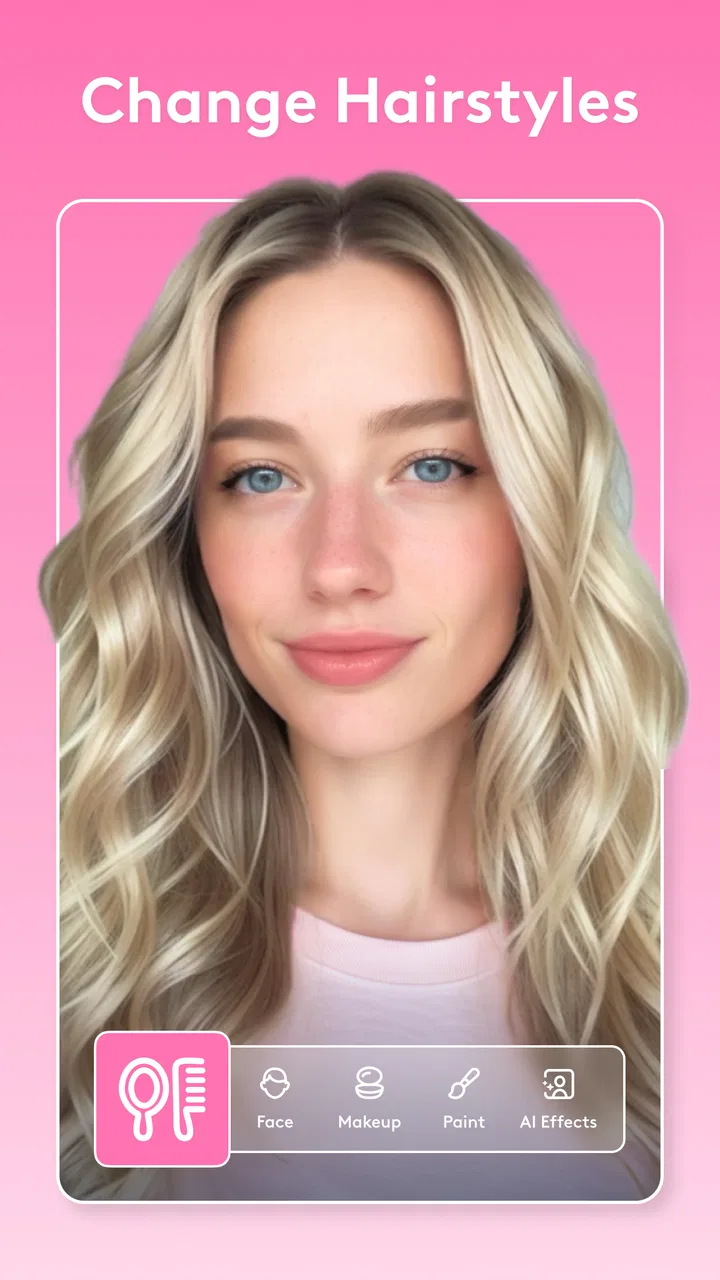
I tend to judge a photo editor by what happens after the first impressive result. Can I open it quickly, understand the controls, fix a portrait without making the person look artificial, and recover gracefully when a tool does not behave as expected? Facetune: Hair, Photo Editor makes a strong first impression because it puts portrait editing, retouching, hair adjustments, color changes, and filters in one focused app. In my experience, its real value is not simply the number of effects available, but how much control it gives me over small appearance changes.
Developed by Lightricks Ltd., this free photography app is aimed at people who want more than the basic brightness, crop, and filter controls found in a phone gallery. It is available for Everyone, supports devices running Android 8.0 or later, and the current version is 2.58.0-free. The app has reached over 50 million installs and holds a 4.4 average from around 806 thousand ratings, which fits my impression of a mature, widely used portrait editor rather than a novelty effect app.
Getting past the first points of friction
The first place many people get stuck is not the editing itself; it is choosing the right starting image. Facetune can make a quick selfie look polished, but the quality of the original photo still controls how convincing the result will be. I get better outcomes when the face is reasonably well lit, the hair is not heavily blurred by motion, and the subject is not hidden behind sunglasses, hands, or a strong shadow. A filter can disguise some problems, but it cannot reliably reconstruct detail that the camera never captured.
You May Also Like

 Blood Strike: 2.5 Anniversary
Blood Strike’s Loadouts Turn Every Drop Into a Tactical Gamble
A close look at Blood Strike’s custom loadouts: how fast access to signature weapons reshapes its battle royale rhythm, rewards preparation, and narrows the gap between fights.

 Pandora - Music & Podcasts
Pandora’s Music Is Easy to Start, but Harder to Recover
Pandora’s strength is its low-effort path from a seed to a station. Its weak spot is how much confidence it asks you to place in connection, setup, and quiet recovery.

 8 Ball Pool
 Is Built on Rivalries, Rematches, and Routine
A close look at the rivalries, rematches, shared routines, and unanswered safety questions that turn a quick pool match into a persistent mobile community.

 Samsung Music
’s Quiet Strength Is Playing What You Already Own
Its reach comes less from spectacle than from dependable access to a personal library. That simplicity is both the app’s strongest retention engine and its ceiling.

 AccuWeather: Weather Radar
AccuWeather Review: A Quick, Clear Forecast for Everyday Decisions
For everyday plans, the best forecast is the one you can understand quickly. AccuWeather makes rain timing, radar, and local conditions easy to act on, with a few trade-offs.

 Hill Climb Racing
Why Hill Climb Racing Still Turns Crashes Into One More Run
A tiny car, a bumpy hill and one more upgrade: Hill Climb Racing keeps resurfacing because its simple chaos makes every near-miss feel personal.
More From Our News Desk



I also recommend deciding what kind of edit you want before touching the tools. A portrait for a profile picture needs a different approach from a playful image for a story post. If I begin by applying several dramatic effects, it becomes difficult to tell whether a later adjustment is improving the image or merely covering an earlier mistake. Facetune is much easier to control when I make one purposeful change at a time and check the original regularly.
The hair-focused tools are particularly sensitive to the source image. Loose strands, dark backgrounds, similar hair and clothing colors, and strong backlighting can make edges harder to handle. When the hair color change looks patchy, I do not immediately assume the app is broken. I first try a clearer image with more separation between the hair and the background. This simple choice often matters more than adding another effect.
Another common stumbling block is expecting every edit to look natural at maximum strength. Facetune makes it easy to push a slider far enough that the result is obvious. That can be useful for creative work, but subtle portrait editing usually benefits from restraint. I normally make the change stronger than I want at first, inspect the boundaries and skin texture, then reduce it until the original person still looks like themselves.
What I check before editing
Before I start, I check that the selected image is the correct one and that the app has finished displaying the full preview. On a busy phone, it is easy to choose a similar photo or begin working while the image is still loading. I also keep the original untouched. If I am experimenting with hair color or a strong retouch, I want a clean reference so I can compare the result rather than relying on memory.
It helps to zoom in only for precision work. At full view, I can judge whether the face still looks believable. At a closer view, I can inspect hair edges, small marks, and uneven transitions. Editing entirely while zoomed in is one of the easiest ways to create a result that looks fine on the screen but strangely overworked when viewed as a whole.
Facetune is free to install, but it includes in-app purchases ranging from $0.99 to $199.99 per item. I treat that as a reason to understand the editing path before committing to anything. I would explore the available controls, make a small test edit, and check what is accessible in the version I am using before planning a large project around a particular tool. That approach avoids building a workflow around an option that may require payment.
A reliable portrait workflow
My usual sequence starts with the least dramatic corrections. I inspect the crop, overall light, and distracting background elements before working on the face. Once the composition is acceptable, I make small retouching changes, then address hair or color, and leave filters until the end. This order matters because a filter can change contrast and color across the entire image, making it harder to judge whether a local edit was clean.
For skin retouching, I prefer targeted corrections over smoothing everything. A portrait often looks more realistic when temporary distractions are reduced while natural texture remains visible. If I remove every variation, the face can become flat, especially around the nose, cheeks, and forehead. Facetune is capable of a polished look, but the most convincing result usually comes from using less than the tool initially seems to invite.
Hair editing deserves its own pass. I work around the outline first, checking whether the new color follows the actual shape instead of spilling onto the forehead, ears, or background. I then inspect the interior of the hair for uneven patches. A useful trick is to view the image at both normal size and close range: small errors may be invisible in the full portrait but become distracting when the image is shared or cropped.
Filters are best treated as a finishing decision rather than a rescue button. If the portrait is too dark or the skin tone is already inaccurate, a filter may exaggerate the problem. I compare the filtered version with the unfiltered edit and ask whether it improves the mood without hiding the work underneath. This is one of the app’s less obvious trade-offs: having many quick visual options can encourage over-editing, while the strongest results often come from a modest combination of adjustments.
The most useful habit is to compare every major change with the original before moving on. That comparison protects against gradual exaggeration. A face can look normal after several tiny edits because each change is judged against the previous one. Switching back to the original reveals whether the final image still represents the person, which is especially important when retouching and hair changes are combined.
Recovering when an edit goes wrong
When an adjustment produces a strange edge, an unnatural color, or an overly smooth face, I do not keep layering corrections on top of it. I undo the most recent step or return to the earlier state, then rebuild that part with a lighter touch. Trying to repair a bad mask with more effects usually makes the image harder to understand and harder to fix.
If the preview appears stuck or a tool does not respond, I first wait briefly and avoid tapping repeatedly. Repeated taps can make it unclear which action actually registered. I then return to the image selection or restart the editing session, depending on what the app allows on my device. A smaller test image is also useful for separating a general workflow problem from an issue tied to one unusually large or complicated photo.
When a saved result does not look like the preview, I compare the two versions at the same zoom level. Sometimes the difference is caused by viewing size or by a crop, not by the edit itself. If the mismatch is clear, I repeat the export with a simpler edit and save a separate copy rather than replacing the original. Keeping versions is especially important for hair color experiments, where the first result may be useful as a reference even if it is not the final choice.
For a failed color change, I check three things: the lighting of the original, the contrast between hair and background, and the strength of the effect. If the hair is partly hidden or blends into the background, I choose another image instead of forcing the tool to solve an ambiguous edge. If the color is too intense, lowering it is usually more convincing than adding a filter to disguise the saturation.
When the phone or photo is the real problem
Not every frustrating result comes from Facetune. A phone that is nearly full can make any editing workflow uncomfortable, especially when creating or saving image copies. I make room before a long session and avoid testing the app with the only copy of an important photo. A restart can also help when the device has been running many demanding apps, but I see that as basic phone maintenance rather than a special Facetune fix.
Image quality is another frequent source of confusion. A compressed screenshot, a photo downloaded repeatedly through messaging apps, or a very small crop may not contain enough detail for clean retouching. The app can still apply an effect, but the boundaries may look rough and the face may lose texture quickly. Whenever possible, I begin with the original camera image instead of a version that has already been resized.
Lighting can mislead the editor as well as the reviewer. Warm indoor light may make a hair color change appear more orange, while a cool outdoor image can make skin look pale. I judge the edit under a neutral screen setting and compare it with the original. If the image is intended for a particular social platform, I also preview it in the approximate crop and display size where it will be seen; an effect that feels subtle in the editor may become much stronger after cropping.
People who expect a full professional retouching suite should set their expectations carefully. Facetune is designed around approachable portrait changes, not the same kind of detailed layer-based workflow I would choose for complex commercial compositing. For a quick selfie, profile photo, or hair-color preview, that focus is a benefit. For precision work involving many separate elements, a desktop-style editor may be the better option even if it takes longer to learn.
Everyday uses that suit the app
A realistic example is preparing a new profile picture after taking several casual selfies at home. I would choose the clearest image, make a small retouch to remove a temporary distraction, tidy the hair color if the lighting made it uneven, and use a restrained filter only if the background needs a little mood. The important part is speed: I can test a few directions without opening a complicated editor, then keep the version that still looks like me.
It is also useful for planning a change before visiting a salon. A hair color edit cannot predict the exact result of real dye, but it can help me compare broad ideas against my skin tone and the lighting I usually encounter. I would use it as a visual conversation starter, not as a promise of a precise real-world match. This is a practical, non-obvious use because the app’s value is not limited to publishing finished portraits; it can support a decision before the actual change.
Creators who post regularly may appreciate a repeatable routine: choose a consistent crop, keep retouching light, apply similar color treatment, and review the original before saving. That produces a more coherent personal style than selecting a different dramatic filter for every image. Facetune’s combination of local portrait tools and broad filters makes this approach possible, but it still requires discipline from the user.
On the other hand, I would skip it if my main goal is organizing a large photo library, correcting landscapes, or making detailed graphic designs. Its strongest identity is portrait editing. A gallery editor is faster for simple rotation and exposure fixes, while a more advanced creative editor is better when I need layers, extensive masking, or precise control over many objects. Choosing Facetune makes sense when the subject is a person and the desired change is visual, immediate, and relatively contained.
How it compares with ordinary alternatives
The editing tools built into a phone gallery are usually quicker for basic corrections. They are the right choice when I only need to crop, brighten, straighten, or apply a simple look. Facetune earns its place when those controls are not enough and I want to work specifically on a face, hair, or small appearance detail without moving to a more technical application.
General social-media editors may offer faster publishing and a large selection of trendy effects, but they often encourage a one-tap result. Facetune feels more deliberate because I can build the portrait in stages and judge local changes separately from the final filter. That control is valuable for natural results, although it also means I have more opportunities to overdo an edit.
Professional photo editors remain stronger for complex projects. They provide a deeper workflow for users who need exact selections, repeatable adjustments, and detailed compositing. I would not replace those tools with Facetune for serious multi-element work. I would choose Facetune when convenience and portrait-specific controls matter more than maximum technical flexibility.
Who should install it
I recommend it to anyone who regularly edits selfies, profile images, beauty portraits, or hair-color ideas and wants more control than a standard gallery provides. It is approachable enough for a casual user, yet it rewards patience when I inspect edges, compare versions, and reduce the intensity of effects. The free entry point makes it easy to try, while the purchase range means I would check the available tools before assuming every part of a planned workflow is included at no cost.
I would be more cautious about recommending it to someone who dislikes manual tweaking or wants completely automatic results. The app can speed up portrait editing, but a convincing image still depends on the original photo and the choices I make. Users who are uncomfortable with appearance-focused editing may also prefer a simpler editor with fewer options and less temptation to alter facial details.
For device compatibility, Android users need version 8.0 or later. That is worth checking before troubleshooting an installation or performance issue. Once installed, I would begin with a nonessential photo, learn how the hair and retouch controls affect edges, and save a separate copy. This small test makes the first serious edit less stressful and quickly shows whether the workflow suits my habits.
After spending time with it, I see Facetune as a focused tool rather than an all-purpose photo studio. Its best results come from a clear portrait, a specific goal, and a light touch. The hair editor and retouching controls give it a practical advantage over ordinary gallery tools, while the filters make it easy to finish an image without switching apps. The trade-off is that its convenience can encourage excessive smoothing, strong color, or unnecessary adjustments.
My practical verdict is positive, with one condition: use it as an editor, not as a button that automatically improves every photo. I would install it for portrait work, quick profile-picture preparation, and testing hair-color ideas. I would choose another app for library management, landscape photography, or detailed professional compositing. If you keep the original, work in stages, inspect hair edges, and compare the final image with the untouched photo, Facetune: Hair, Photo Editor is a capable and approachable choice for everyday portrait editing.
FAQs for Facetune: Hair, Photo Editor
01What is Facetune: Hair, Photo Editor used for?
Facetune: Hair, Photo Editor is a versatile app designed for enhancing selfies and portraits. It allows users to retouch photos, change hairstyles, and apply makeup effects effortlessly. With its intuitive tools, you can smooth skin, whiten teeth, and edit facial features, making it ideal for anyone looking to perfect their photos before sharing on social media.
02Is Facetune: Hair, Photo Editor easy to use for beginners?
Yes, Facetune: Hair, Photo Editor is user-friendly and suitable for beginners. The app features an intuitive interface with simple navigation, making it easy to access various editing tools. Tutorial guides and tips are also available to help new users get started and achieve professional-looking results quickly.
03Does Facetune: Hair, Photo Editor require an internet connection to function?
Facetune: Hair, Photo Editor does not require an internet connection for basic editing functions. You can retouch and enhance photos offline. However, an internet connection may be necessary for downloading additional features, updates, or when accessing online help and tutorials.
04Are there in-app purchases within Facetune: Hair, Photo Editor?
Yes, while Facetune: Hair, Photo Editor offers a range of free features, there are in-app purchases available. These purchases can unlock premium tools and effects, providing an enhanced editing experience. Users can choose to upgrade to a subscription model for full access to all features.
05Is my data safe with Facetune: Hair, Photo Editor?
Facetune: Hair, Photo Editor takes privacy seriously and implements standard security measures to protect user data. Photos edited within the app are stored locally unless shared externally. It's always recommended to review the app's privacy policy and permissions to understand how your data is managed.
Pros
- User-friendly interface for quick edits.
- Wide range of hair color options.
- Realistic photo retouching tools.
- Offers a variety of beautification features.
- Regularly updated with new features.
Cons
- In-app purchases can be pricey.
- May require a learning curve for beginners.
- Occasional glitches with certain devices.
- Some features need internet access.
- Limited free features without subscription.

Facetune: Hair, Photo Editor
Gallery